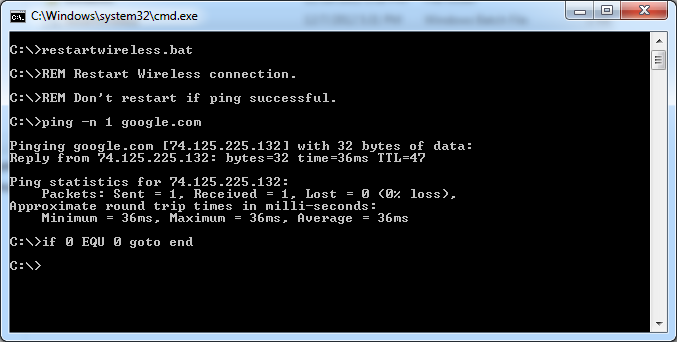
I often find myself using various remote access tools to control kiosk and digital signage displays around the country, many of these devices are connected via wireless cards. Assuming the router is up, it can, from time to time be necessary to restart the wireless NIC, not an easy task to do if you’ve already lost connectivity. I first used this on Windows XP using the DevCon command-line utility, the script just pings Google and if the ping is successful nothing happens, if not it disconnects the WiFi connection, waits 5 seconds and attempts to reconnect.
This set of instructions is for Windows 7, I believe this would work in Windows 8 but I haven’t tested that, Windows XP instructions can be found in the comments, along with a URL to for the required files.
What you need to complete this:
For starters, you need a WiFi card, if you don’t have one integrated into your CPU here is a cheap wireless N card that’s compatible with more Windows flavors and works well, Medialink- 150Mbps Wireless N USB Adapter – XP / Vista / Windows 7 & 8 Compatible

1) SSID of Wireless Network (CaSe Sensitive)
C:\>;netsh wlan show networks
2) Wireless Profile Name (CaSe Sensitive)
C:\>;netsh wlan show profile
C:\>;netsh wlan show interfaces
Now with those three pieces of information you should be able to run the following command (remember these are CaSe Sensitive) my assumptions are:
1) your SSID name is: My Wireless Network
2) Your profile name is: My Wireless Network
3) Your interface is: Wireless Network Connection
C:\>;netsh wlan connect ssid=”My Wireless Network” Name=”My Wireless Network” Interface=”Wireless Network Connection”
If that works, move on to test the disconnect, if it doesn’t work you probably missed my four previous comments about these Interface/profile and SSID names being case sensitive.
C:\>;netsh wlan disconnect interface=”Wireless Network Connection”
Next you need to create the script, open notepad and add this text to the document
REM Restart Wireless Connection
REM Don’t restart if ping works.
ping -n 1 google.com
if %errorlevel% EQU 0 goto end
netsh wlan disconnect interface=”Wireless Network Connection”
TIMEOUT 5
netsh wlan connect ssid=”My Wireless Network” Name=”My Wireless Network” Interface=”Wireless Network Connection”
:end
Save the document as restartwireless.bat (make sure you put the .bat otherwise you are just saving it as a text file and we need a batch)
It’s probably not a bad idea to open the command prompt, navigate to where you saved the new batch file and run it by typing
restartwireless.bat
Make sure you test this both with you WLAN connected and disconnected to make sure it works both ways. Provided that works, all you need to do is schedule the script to run periodically using Windows Task Scheduler. You could have the script run every hour, or once a day, lots of settings you could tweak there, might want to make sure you run the task with elevated privileges in the task scheduler.
Thanks for this post! It was exactly what I was looking for 🙂
Thanks!
Any chance of getting a similar script to work on Windows XP?
Yes, I originally used this on Windows XP but it involves using the Devcon command-line utility, still easy to setup. I’ll find the script/file and create a new post with a link from this article on how to set this up on XP.
I found the devcon app and script I used on XP.
Here is Devcon (required with XP, it’s a command line app that allows control over devices,)
https://s3.amazonaws.com/JeremyHarlow.Net/Downloads/devcon.exe
And here is the script file
https://s3.amazonaws.com/JeremyHarlow.Net/Downloads/restartwireless.bat
Just use task schedule to schedule the task (after installing Devcon).
Let me know if you have any questions, you will need to get your device ID from device manager and replace my (PCI\VEN_168C*) with your proper device (asterisks are ok).
Thanks for posting the XP version of the script and Devcon. It works like a charm! I appreciate it a lot.
how do you send a password to connect to the network within the bat file? what’s the script for that?
thanks in advance
You should connect first, then the password will be saved in Windows, the script just joins the (known) network.
Thanks for this, Jeremy! Seems to be just what I’ve been looking for. Just an FYI, I originally copied-and-pasted your script into Notepad2, but the end of step 3 failed to work for me. Then I realized it was because the quotation marks came through as curly quotes. Dunno if this is exclusive to Notepad2 or if it’s worth editing your script above, but there you have it.
Hmm, good to know, same thing happened when I copied it to notepad. I don’t know it’s either the template or the block quotes, i’ll take a look later but hopefully anyone who uses it, reads this. Glad this worked for you, I still use it!
I loved the tutorial but yes the quotes are coming through in another encoding and blocking the script from working.. if you manually replace the fake quotes with real ones from your own keyboard the script will run! It would be nice if you updated this to reflect this info.. took me an hour to figure out.
Thanks Jeremy, this helps a lot. I just attempted to modify it slightly and let the batch loop check the connection and it turned out to be working. So I guess we can get rid of Windows Task Scheduler ; )
Cool idea, did you put a timeout in there? Only reason I ask is I wonder how many pings before you get flagged for a ping flood, I assume it would take far more than this loop would generate though and it sounds like a nice way to get rid of the task scheduler. Thanks for sharing!
Yes, I did put a timeout for 60s at the beginning of the loop, which means in the worst case, more than 1 min is needed to get the wifi reconnected ; (
thank you. my internet connection get disconnected sporadically…. your script is really useful! thanks!!
Hi ,
Does this script works trigger when devices disconnect and does it restart the services as well ?
It triggers when the ping is unsuccessful and it restarts the wireless interface, it could be updated to include a another service as well.
Thankx Man… Quick solution…
Thanks, glad this is still finding use.
Thank you Jeremy. Much appreciated. Struggling with Task Scheduler. And wish I could make it run every minute. In any case, much appreciated.
You can!
Hey!! Thank you so much! I was searching this.
I made a mod and you dont need the Task Scheduler:
REM Restart Wireless Connection
REM Don’t restart if ping works.
:START
ping -n 1 192.168.0.1 -w 10000
if %errorlevel% EQU 0 goto CONECTADO_OK
netsh wlan disconnect interface=WiFi2ANT
TIMEOUT 5
netsh wlan connect ssid=NET_NAME Name=NET_NAME Interface=WiFi2ANT
:CONECTADO_OK
TIMEOUT 40
goto START
Thanks again!
Awesome – Thanks for the update!
Hallo, pleas can You Upload the XP script again,
I have to reconnct a XP computer to the Wireless lan, but Thje connection is Often lost
Thank you so much Jeremy, exactly what I need!
No problem!
Pingback: How to reconnect wireless connecion using script - GetShortCode.com
Thanks broooo <333333
No problem!
Awesome!!!
I had exactly the same issue with my remote desktop. Had to drive all the way back to my laptop and started looking for a solution, found this one and it still works (W10). Thanks! 🙂
Will there be any problem if I keep it running continuosly in a loop using 10 seconds timeout?
ok, anyway to either port this or something similar to this for a linux distro?!
Pingback: Https auto connect to wifi after tty login using script Portal Guide Instructions Help - centtip.com
Thank you so much, you just don’t know for how long that ive been looking for this solution.